
For iPhone and Android
How to install the app
|
1
|
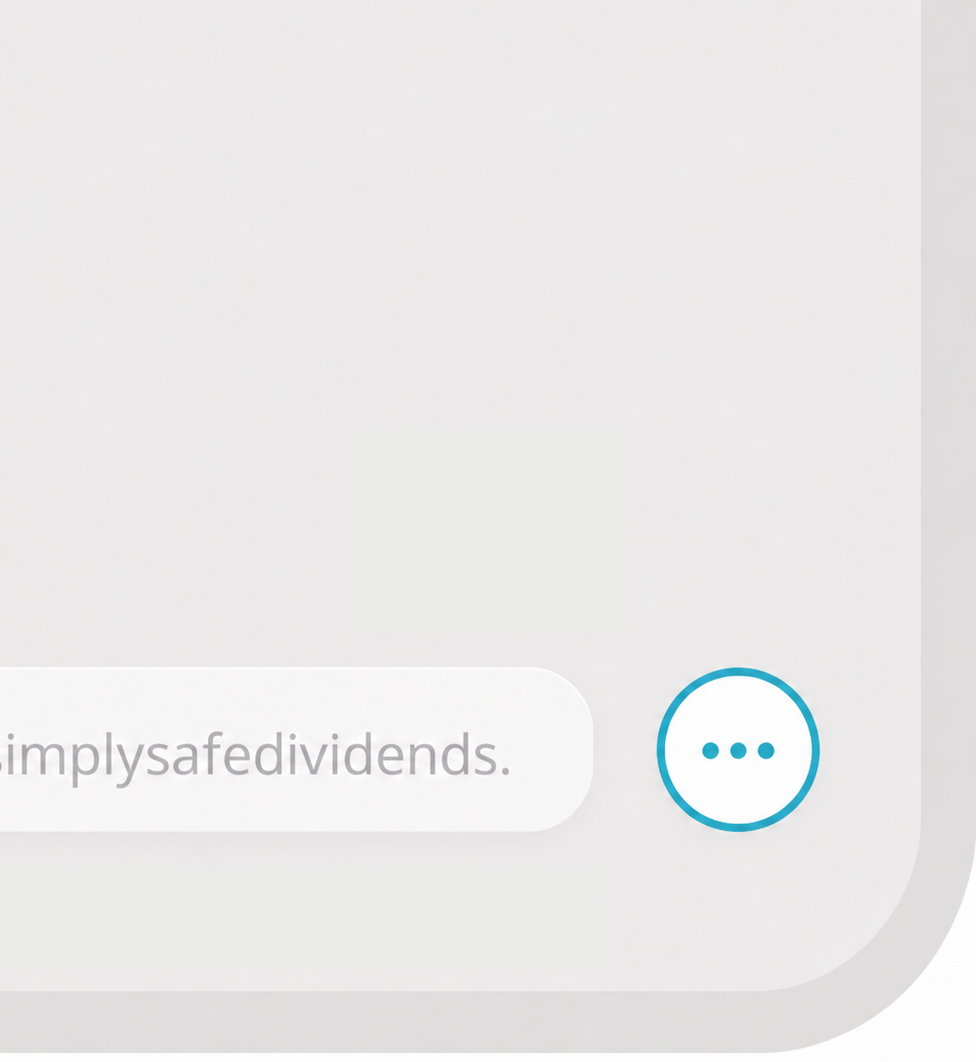
Tap the
icon at the bottom of this screen, then tap Share
On some iPhones, the Share icon (
 ) may already be at the bottom of this screen ) may already be at the bottom of this screen
|
|
|
2
|
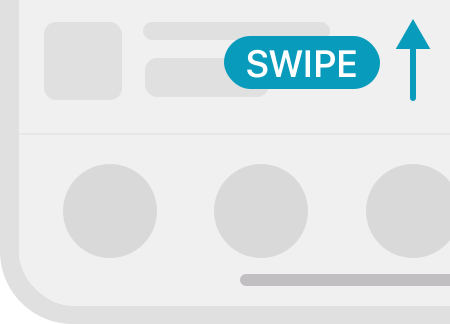
Swipe up to see more options
|
|
|
3
|
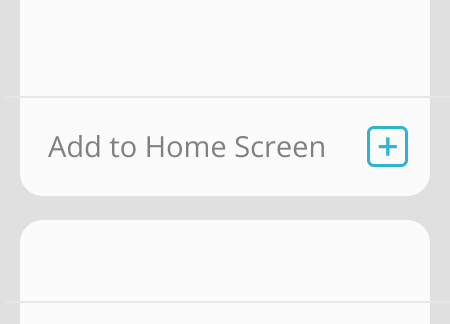
Tap Add to Home Screen
|
|
|
1
|
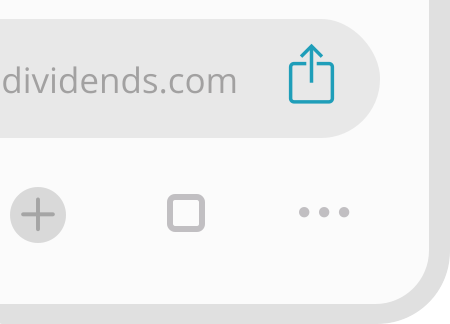
Tap the Share icon (
) in the address bar on your screen
|
|
|
3
|
Find and tap Add to Home Screen
You may need to click View More to expose Add to Home Screen
|
|
|
1
|
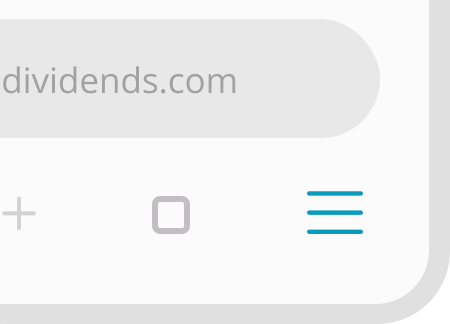
Tap the Menu icon
(
)
at the bottom of the screen
|
|
|
2
|
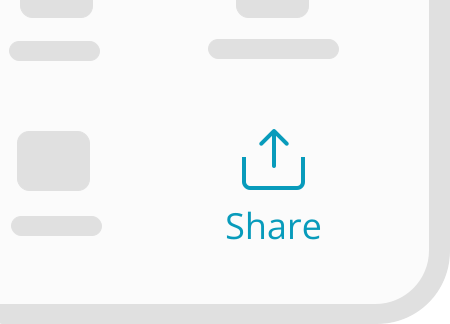
Tap
Share
(
 ) )
|
|
|
3
|
Swipe up to see more options
|
|
|
4
|
Tap Add to Home Screen
|
|
|
1
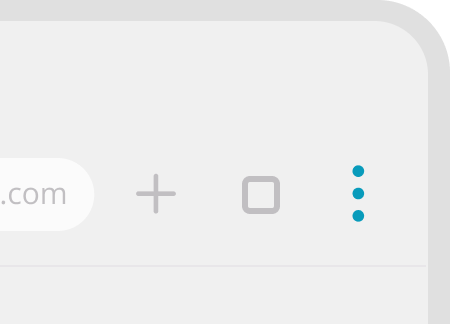
Tap the three-dot menu icon
(
)
at the top of your phone
|
|
|
2
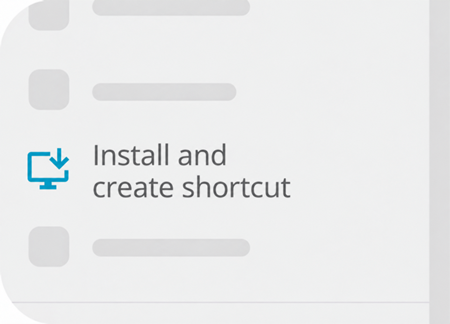
Tap Install and create shortcut
You may see Add to Home Screen instead
|
|
|
3
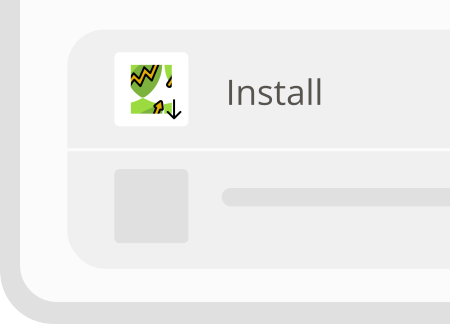
Tap Install
|
|
|
1
|
Tap the Menu icon
(
)
at the bottom of the screen
|
|
|
2
|
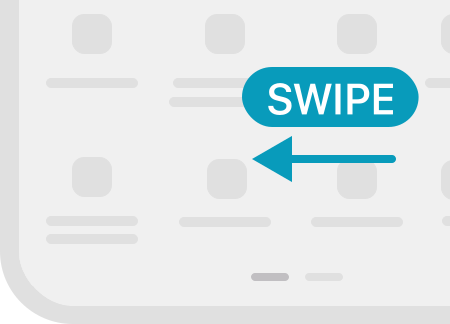
Swipe left to see more options
|
|
|
3
|
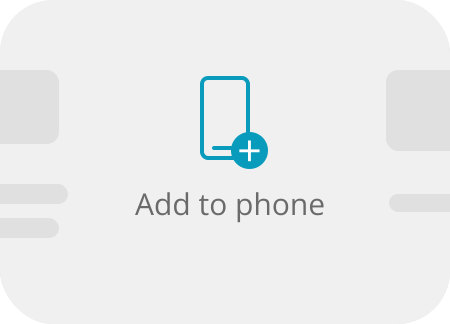
Tap Add to phone
|
|
|
4
|
Tap Install
|
|
Open this page in Safari 
Copy and paste the link below into Safari to install the app. We'll guide you from there!
Copied to clipboard
Open this page in Chrome 
Copy and paste the link below into Chrome to install the app. We'll guide you from there!
Copied to clipboard
Scan this QR code with your phone's camera:
Or open this link in your phone's web browser:
Copied to clipboard
Our app isn't in the Apple App Store or Google Play, but adding it is quick and easy. We'll show you how.